How to Enable CrossPlay on Your Minecraft Server
How to Enable CrossPlay on Your Minecraft Server with GeyserMC
How to Enable CrossPlay on Your Minecraft Server with GeyserMC
Minecraft featured two editions of the game — the Java edition, which is majorly used on PC, and the Bedrock edition, which is majorly used on consoles, mobiles, Windows 10/11, and many others. Both these editions of the game runs differently and have their own unique gameplay mechanics, preventing players from joining the same server or world. However, to solve this issue, players can simply install GeyserMC. A revolutionary plugin allowing the bedrock edition of the game to join servers running on the Java edition and experience all the features, plugins, and other mechanics configured on it.
What is GeyserMC?!
GeyserMC is a plugin that acts as a proxy between a Java and a Bedrock server. It works by translating Bedrock network packets from the Bedrock client into Java-compatible ones. In simple terms, it acts as a gateway for the Bedrock edition of the game to join a Java server, and since it only works by translating Bedrock network packets, no updates or modifications take place in the game, and both editions of the game can enjoy the same experience without experiencing any type of difficulty.
Installing GeyserMC on MCServerHost
Installing GeyserMC on your server is quick and simple. You can turn on crossplay in a single click, and MCServerHost will install and configure both GeyserMC and Floodgate for you.
- Log in to your MCServerHost dashboard and select your server.
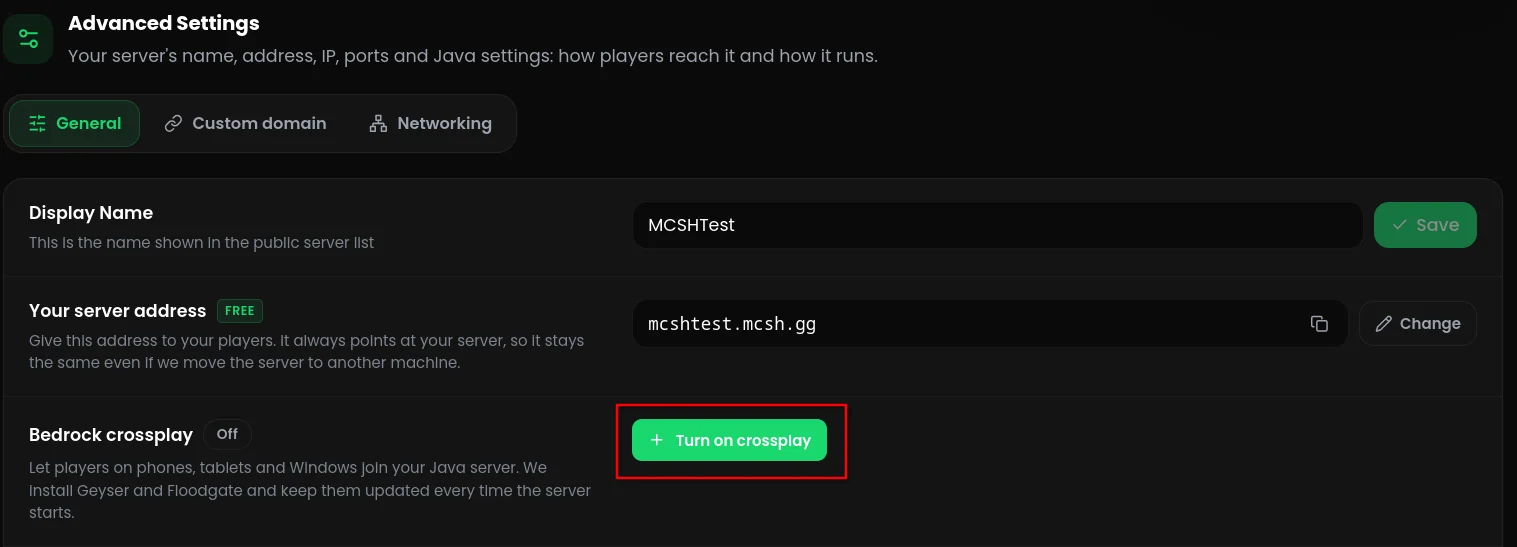
- Open Advanced Settings and find the Bedrock crossplay section.
- Click the Turn on crossplay button. Your server will then accept connections from both Java and Bedrock players.
Manual Installation
If you would rather install the plugins yourself, or crossplay does not turn on for any reason, you can also install GeyserMC and Floodgate manually. With our system at MCServerHost, you do not need to manually edit configuration files or port settings, as they automatically get configured correctly upon startup! Follow the steps below:
- Download the latest versions of GeyserMC and Floodgate from GeyserMC’s official website.
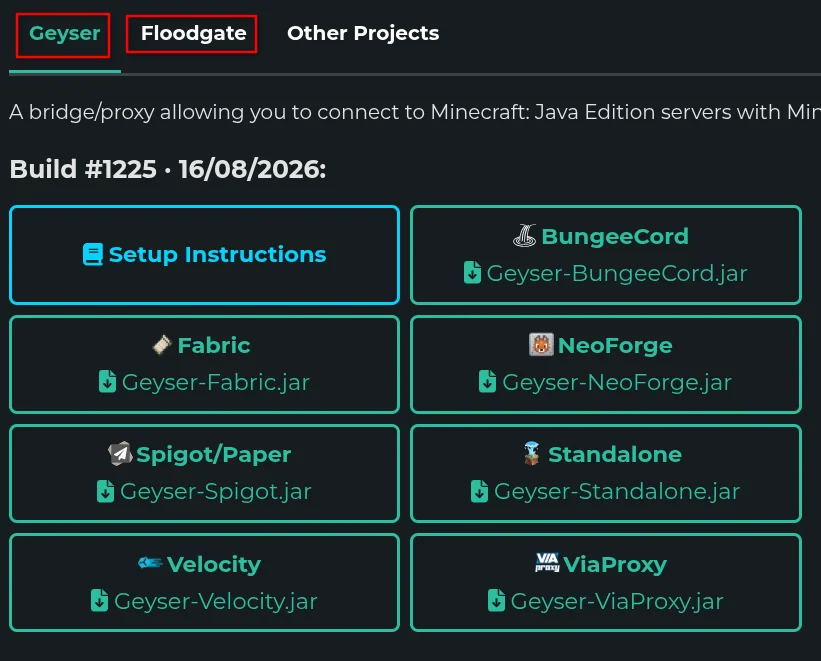
Log in to your MCServerHost dashboard, locate the server where you want to install the plugins, and stop the server.
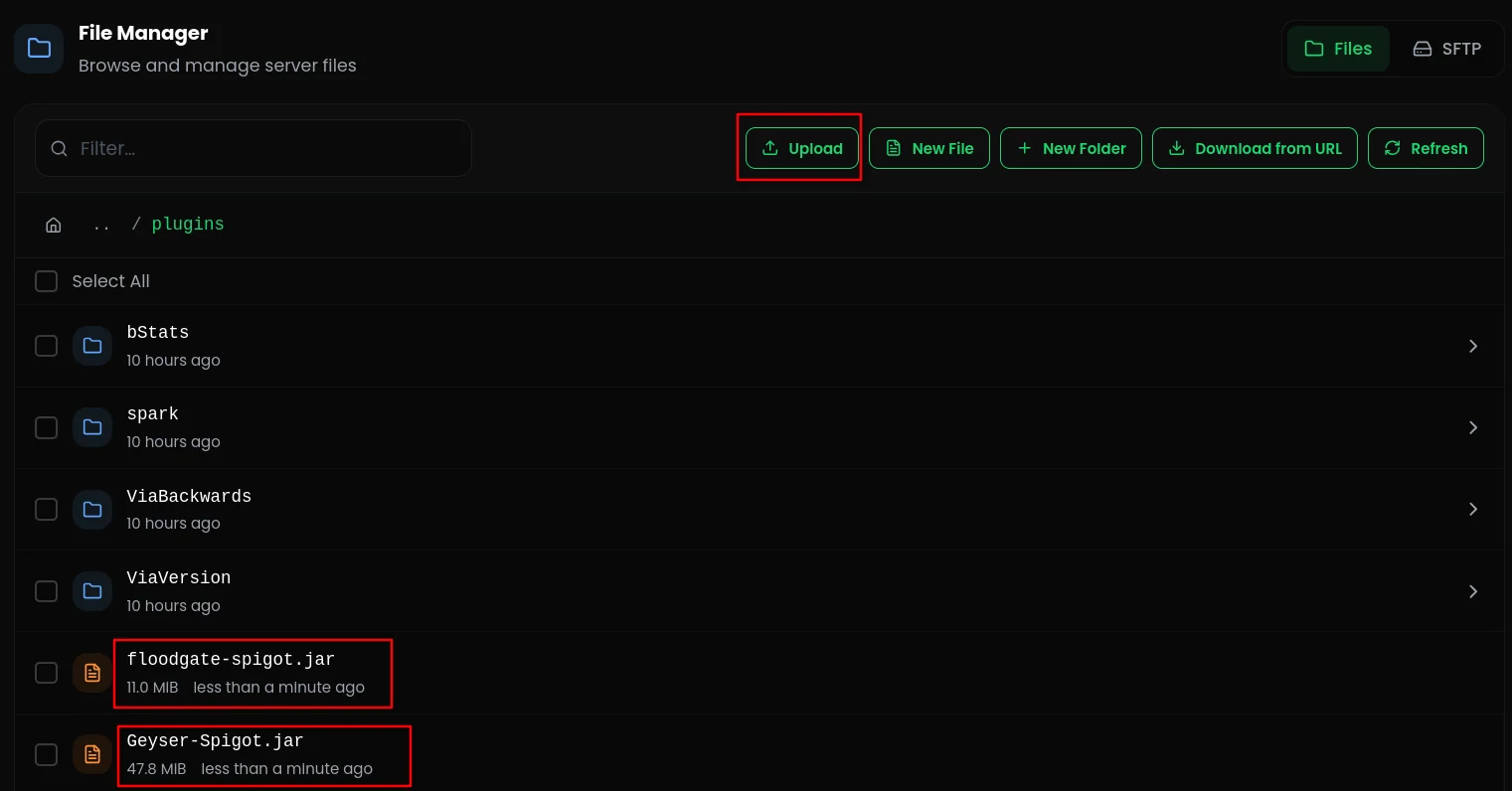
Navigate to the File Manager, open the
pluginsfolder (ormodsfolder if using Fabric/Forge), and upload both the GeyserMC and Floodgate.jarfiles.
- Restart your server. Once started, MCServerHost will automatically configure everything required for crossplay to work seamlessly.
Useful Extra Configuration Settings
Although MCServerHost automatically configures network settings and ports, you can still customize additional GeyserMC options to tailor the gameplay experience for Bedrock players. These settings can be found in plugins/Geyser-Spigot/config.yml (or mods/Geyser-Fabric/config.yml):
gameplay.nether-roof-workaround: By default, Bedrock Edition prevents players from building or walking above Y=128 in the Nether. Setting this value totrueallows Bedrock players to build and travel on top of the Nether roof just like Java players.gameplay.cooldown-type: Java Edition features attack cooldowns that Bedrock natively lacks. You can set this tocrosshairorhotbarto display a visual attack cooldown indicator to Bedrock players during combat, ordisabledto turn it off.motd.passthrough-motd: Setting this option totrueautomatically syncs your Java server's MOTD (Message of the Day) and server icon so Bedrock players can see it on their server list.
Conclusion
After completing the entire process according to this tutorial, you will be able to join your Java edition server with any edition of the game. On that, it is advised to back up your server before installing GeyserMC on your server, as it can also produce multiple errors on your server if conflicts occur.
Similarly, if you are having any type of issue or problem with your server at MCServerHost you can always get in touch with us by joining our Discord server or writing us at support@MCServerHost.com.
Related guides
- How to Migrate your old MCServerHost account.: How to Migrate your old MCServerHost account to the new MCServerHost.
- How to Upload Files to Your MCServerHost Server: Learn how to upload files to your Minecraft server.
- Complete Guide to Server Snapshots on MCServerHost: Learn how MCServerHost Snapshots work, how they differ from backups, and how to create, manage, and restore them safely.
- How to Set Up PL-Hide on Your Minecraft Server: Stop players seeing your plugin list and clean up tab-completion of plugin commands.